Install and activate OpenWorkspace
Download the installer, run it,
then enter your license key.
Don't have a license key yet?Start your free trial →
HOW IT WORKS
Arrange your work. Save its setup. Restore it when you return.
On macOS, restoration currently supports browser windows and tabs. Desktop app and file integrations continue to expand across Windows and macOS. See platform capabilities.
Download the installer, run it,
then enter your license key.
Don't have a license key yet?Start your free trial →
Step 00
Think of a task, topic or activity you'll return to.
FOR EXAMPLE…
Example workspaces
Step 01
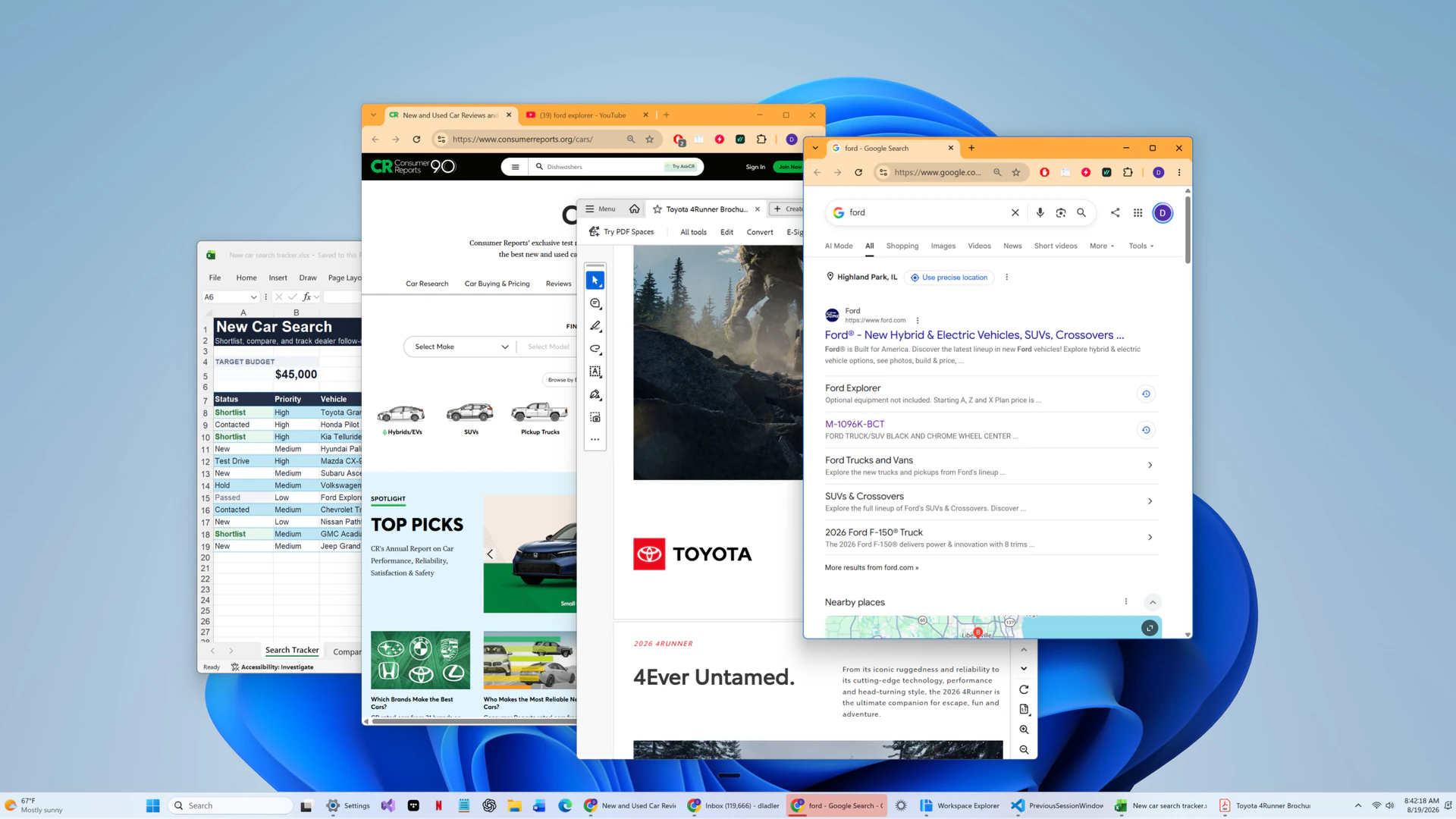
Bring the tabs, apps, and documents you need onto the desktop. Close anything unrelated.
Step 02
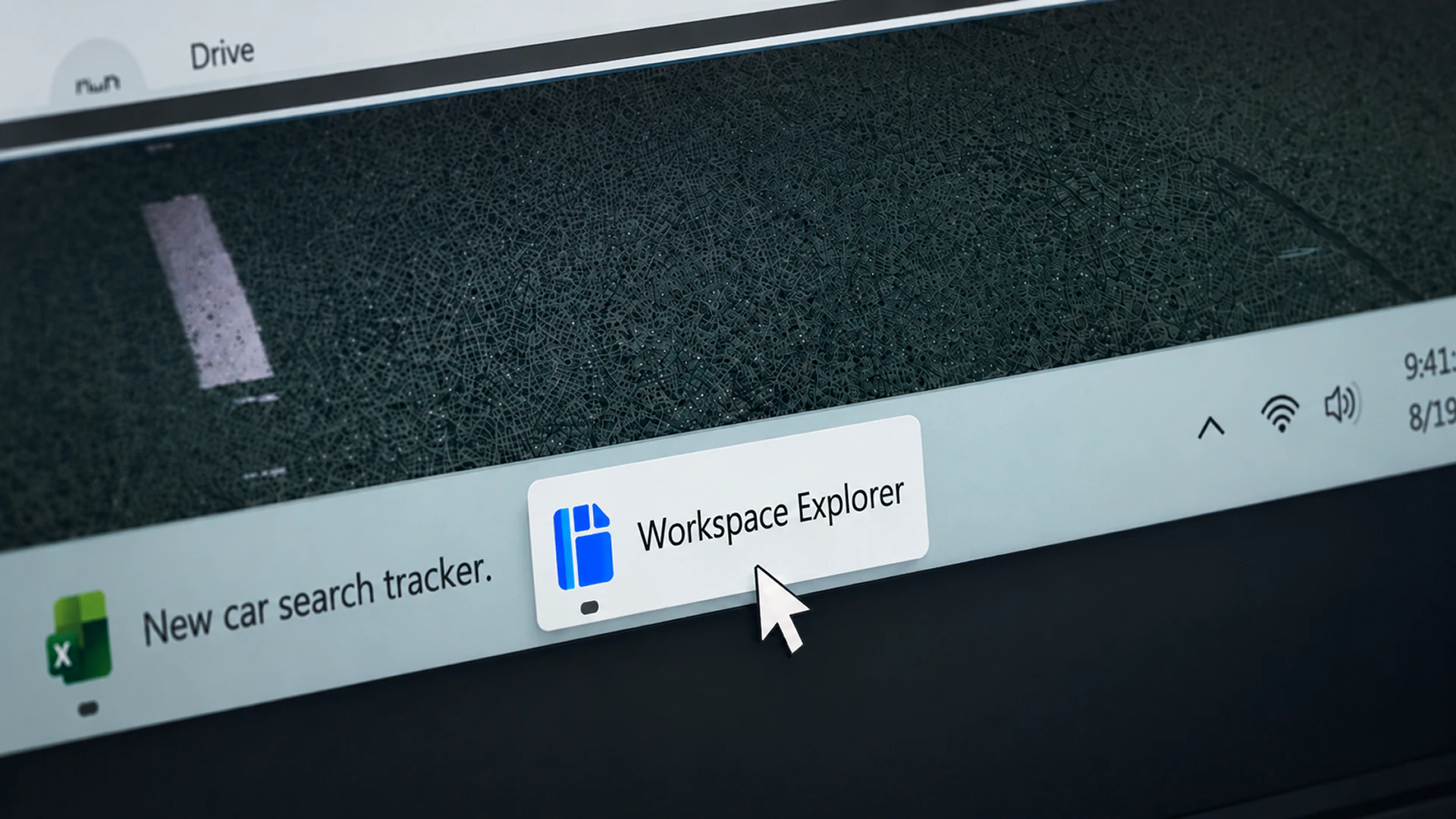
Use your desktop's taskbar/dock, use Alt+W+E / Cmd+W+E, or say "Edit workspace".
Step 03
Give the workspace a name, add labels if useful, then save it.
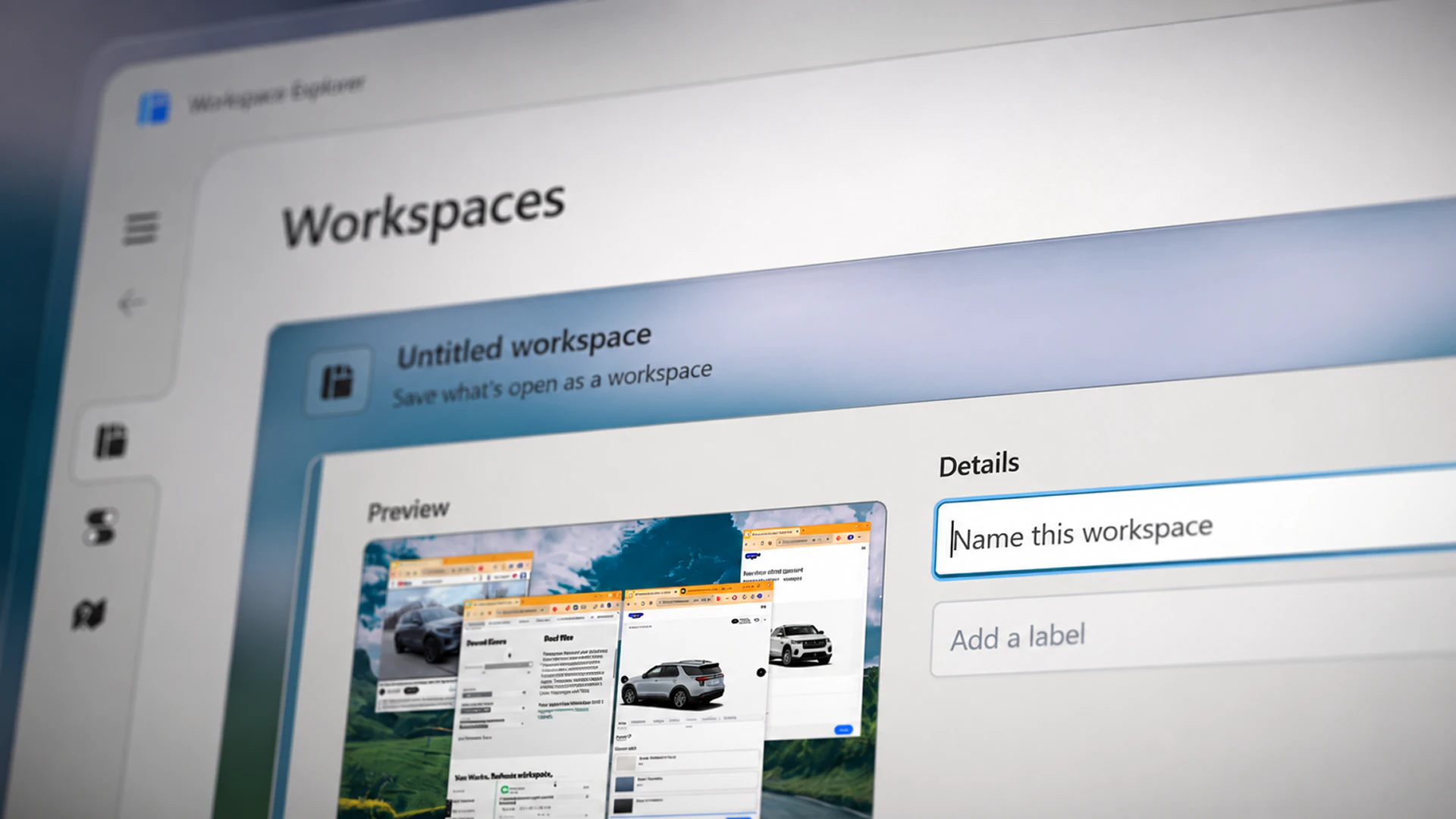
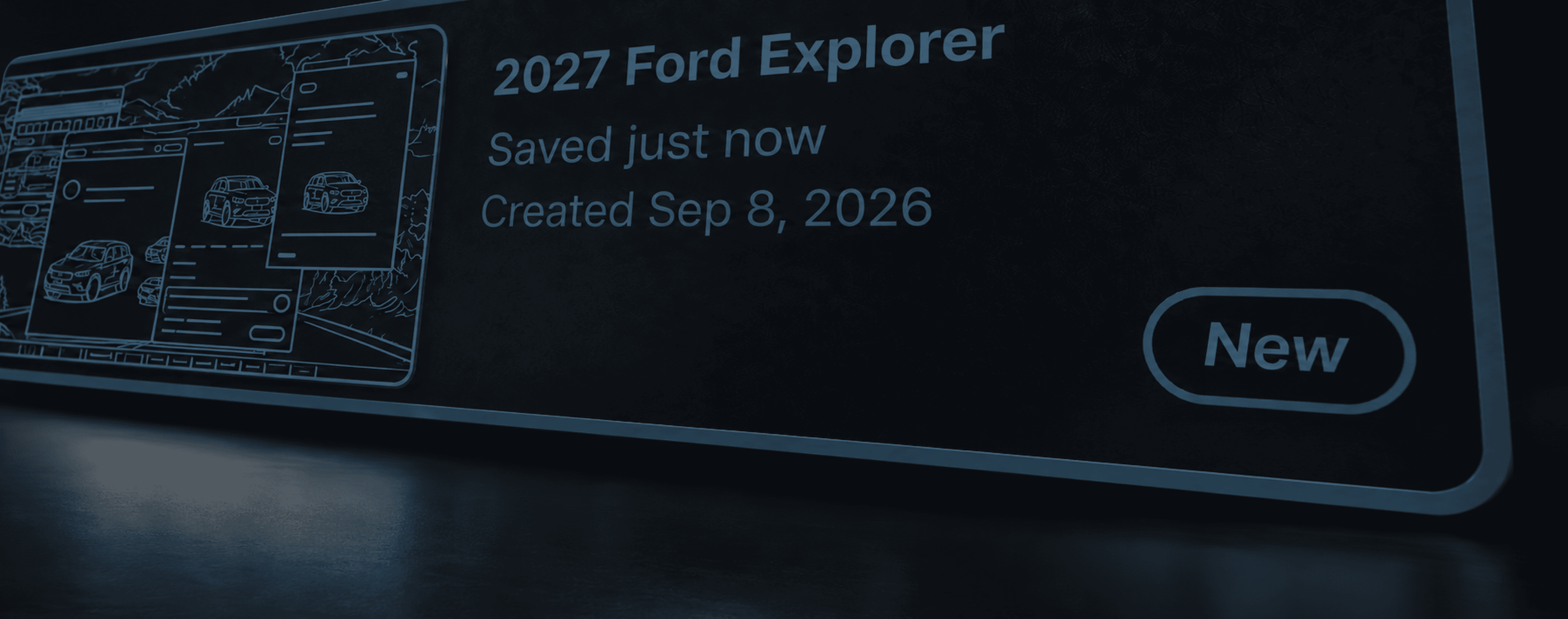
Open it whenever you return to car shopping, and OpenWorkspace restores your saved desktop for you.
Each workspace preserves the setup for a task or topic, so you can return to it without having to find and reassemble all the pieces.
Create several at once or as you work, then reopen any one by name.
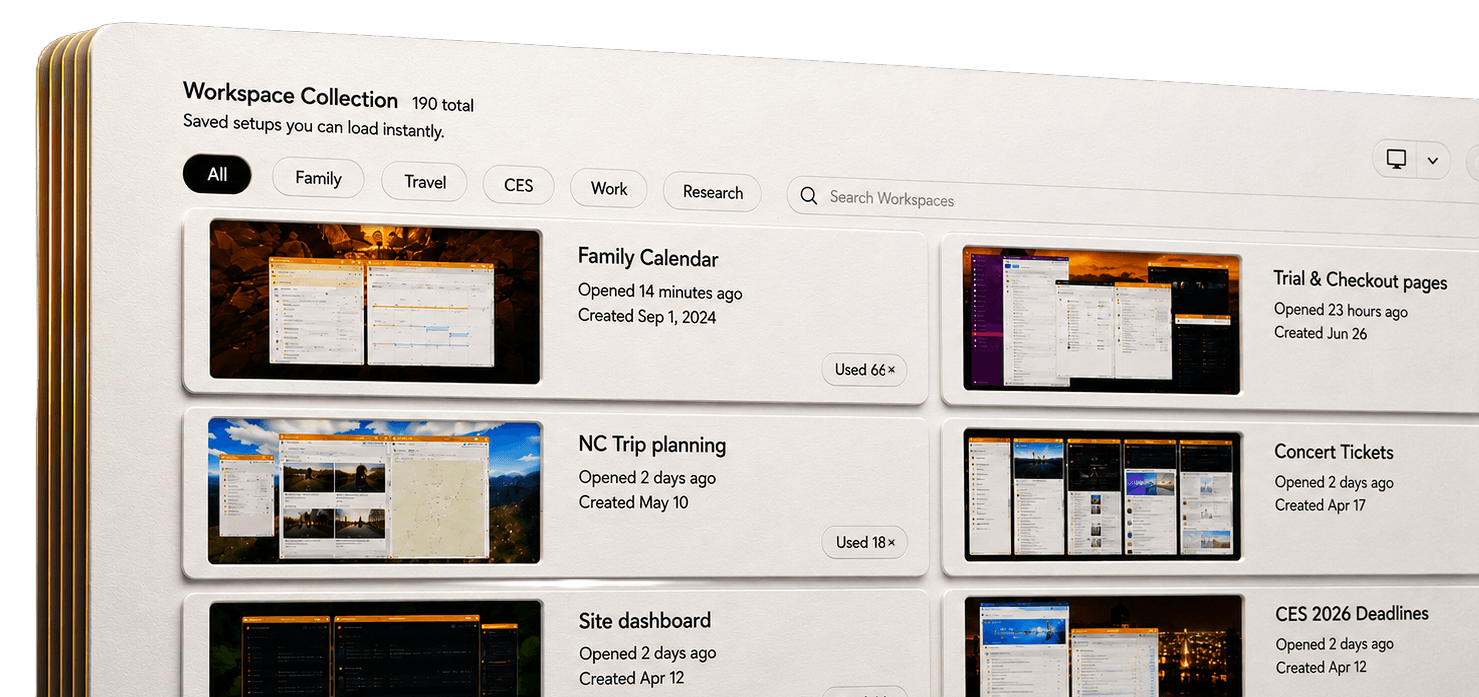
WORKSPACE OPTIONS
Use wallpaper, appearance, icon visibility, and more to make each workspace easier to recognize and distinguish within your collection.
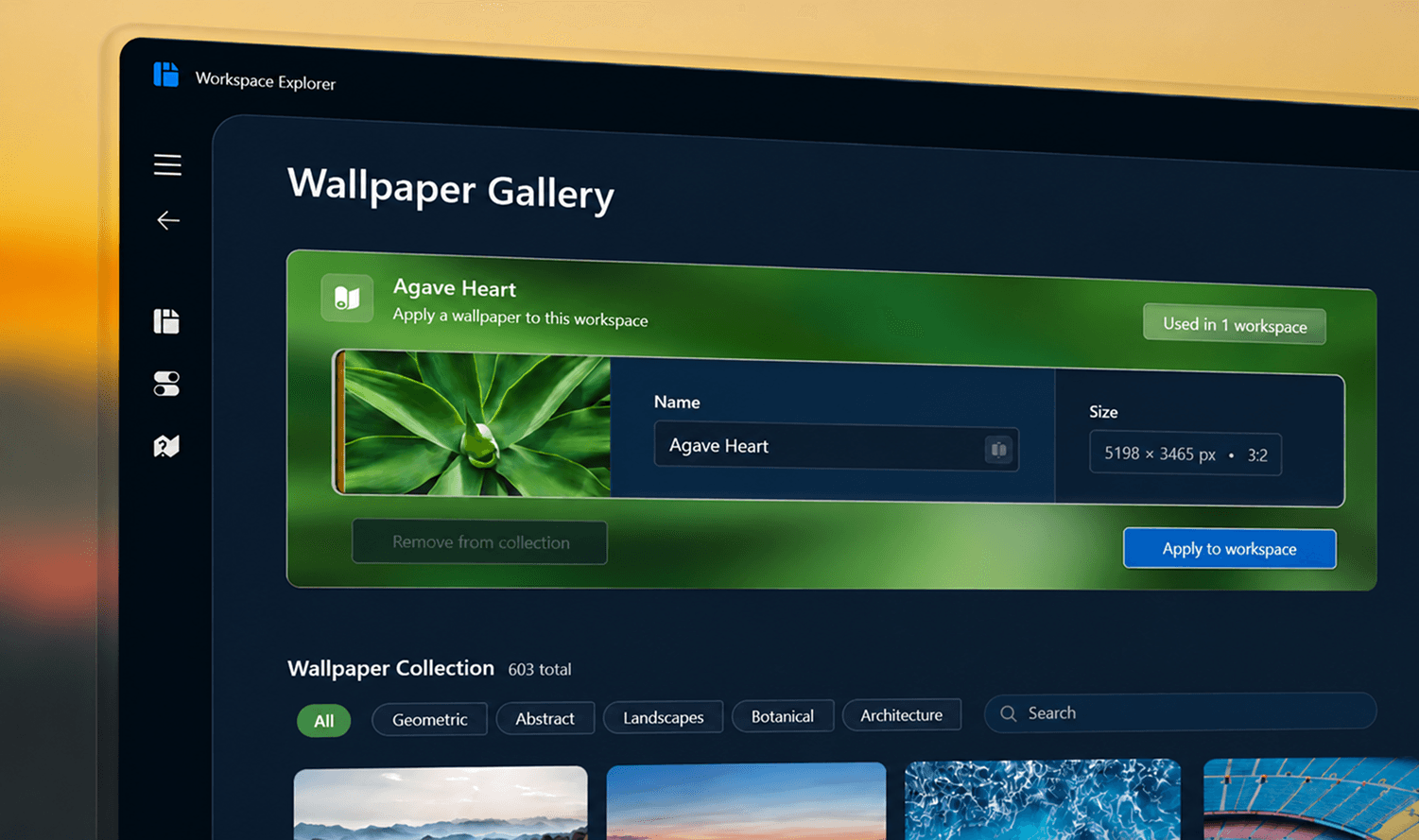
Apply a wallpaper to help distinguish the workspace.
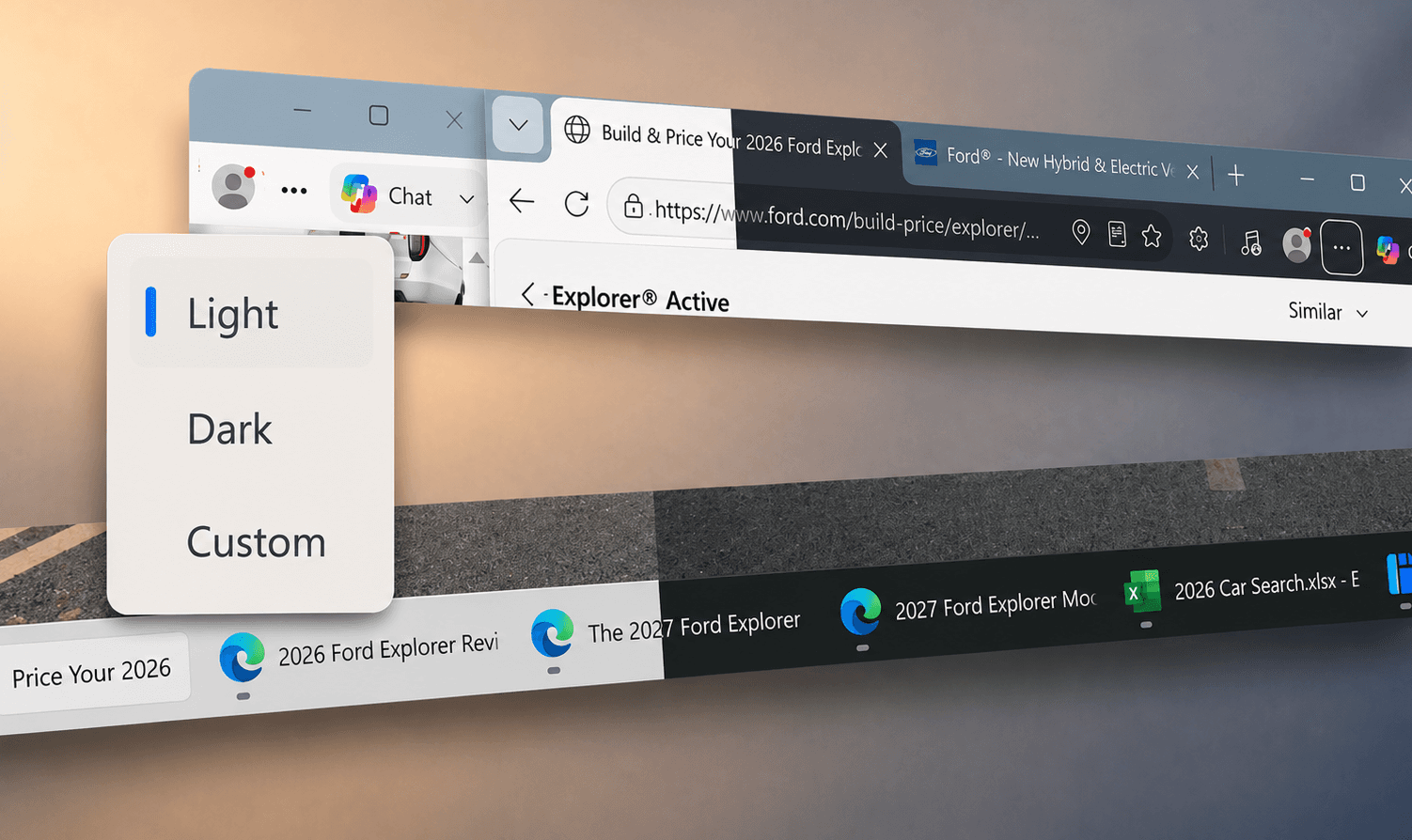
Choose light or dark system/application appearance.
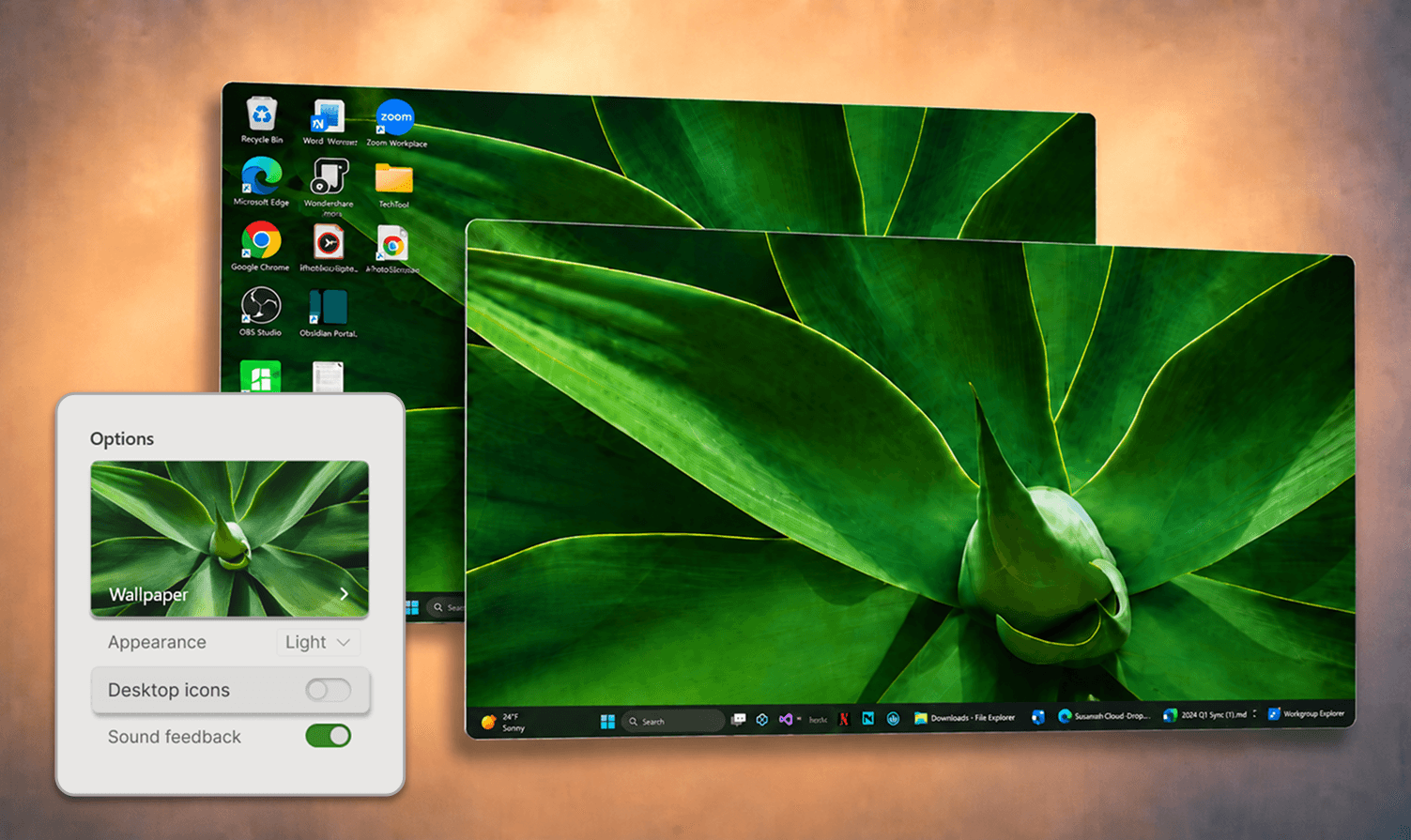
Choose whether desktop icons are shown or hidden.
FOCUS + CONTEXT
A Workspace determines what belongs together for an activity. FocalContextual™ adds an optional way to structure that material while you work. Focal Panels provide a stable area for primary work, with supporting content around it. Move different content and app windows into focus as your attention shifts.
14 days · No credit card required